


Find Map
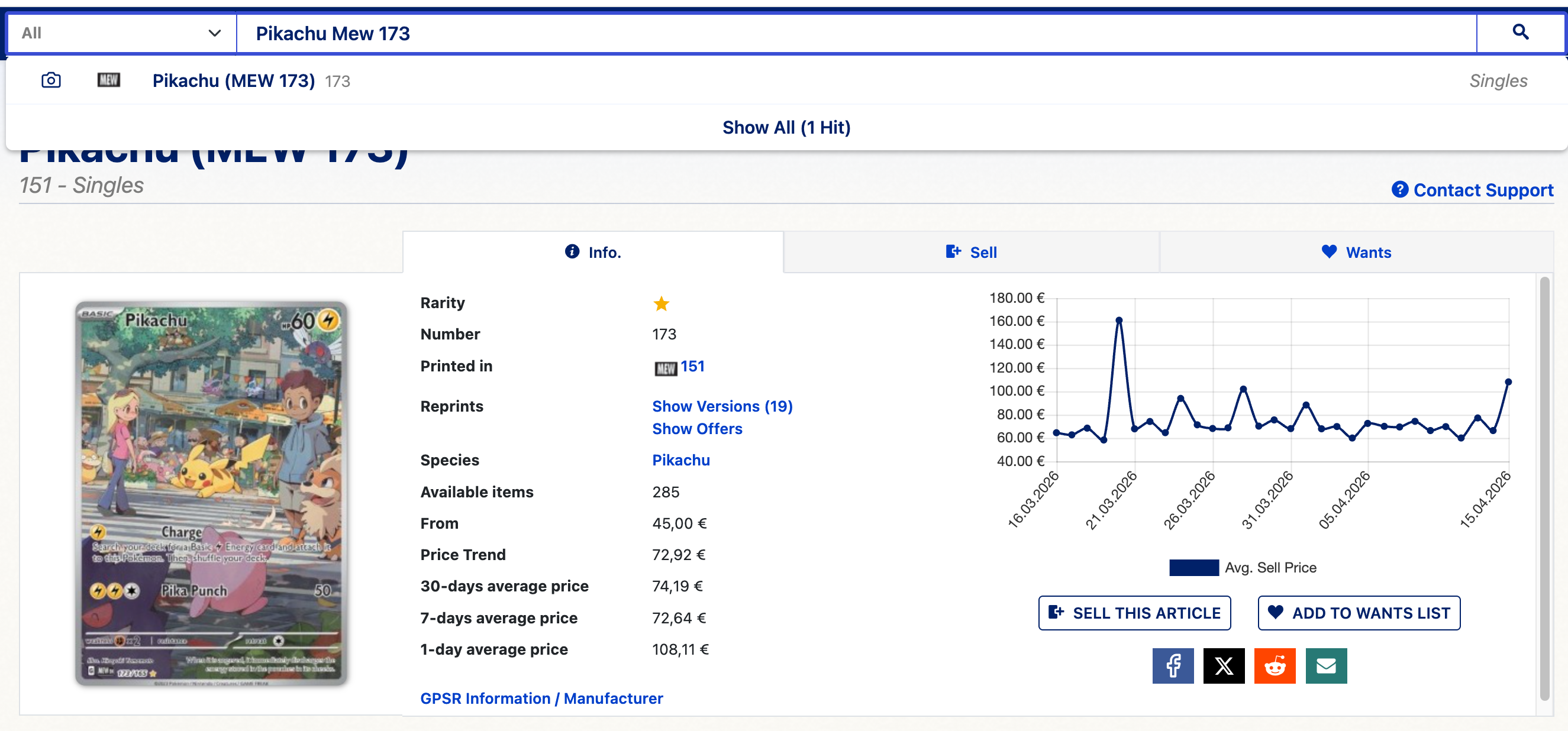
First of all, you need to set Cardmarket to the right TCG, in our case Pokémon. At the top is a search bar, but if you fill in only Pikachu you get 100+ results.
If you are looking for something, you should also enter the number of the map, which you can find on the bottom left of the map. For example, in this case, you get the most accurate options.
Use the filter
If you've found the card you're looking for, you'll get general information about the number of cards available, the price trends, and if you're looking for a different version, you can easily find it under the map.
Below is a list of all the sellers who have this card for sale. The top one is the cheapest card offered, but you probably want to sort by English. You do that by clicking the funnel on the left. You can fill out many more options here, another one I recommend is the seller's location. The last one is to set the desired state of the card, I usually put it on NM.
The top options remove 90% of the hidden costs. Sometimes cards seem very cheap, but it is a different language, or extra delivery costs are added because of the distance, or the card appears to be in poor condition.

Review the seller
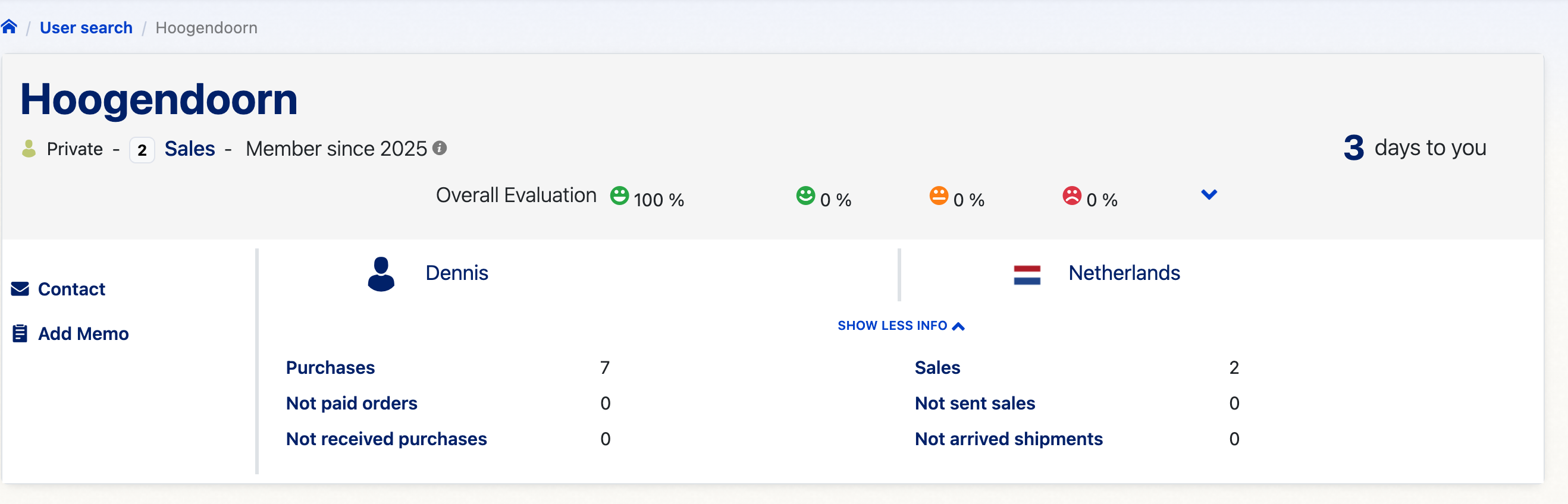
The cheapest (top seller) is not always the best, even if you have used the right filter. You can tell the seller if they are a professional seller (on the doll with tie) and what assessment they have of the asterisk by their name.
Create a wantlist
On Cardmarket you can also create a list of cards you are looking for. I usually call them after the show, and add cards I'm still looking for. You can also add a map directly to your wish list at the heart.
You can also set to receive an email once a card you are looking for is available again. What I do to the bug list is to create a separate list: Shopping cart, I call it. That's where I'll add all the cards I want to buy. At the bottom you can then choose the option: Load sellers with the most cards.
You'll get a list of sellers who have the most of your cards in stock. Please note these are not yet the cheapest prices, but they are useful if you want to buy as many cards as possible at once. You want to find the cheapest options? Then use the Wizard
Wizard Settings
You can also use the Wizard. There you can set condition of the card, location of the seller etc. So you get the option "Reduced price" or "Reduced shipping." If you have already set the location correctly you should take the first option.
Then you get an overview of sellers who offer your desired tickets at the lowest price. You can buy your tickets directly from the seller, but you can also click on the seller and then filter his singles on your wishlist: Shopping cart. Sometimes he still has cards that you can order at the same time but are slightly higher than the cheapest price offered in the Wizard. You can also save something on shipping costs.
Once you have made your purchase, you can My purchases see in which process you are, paid, sent, received etc. You can also click on the order and on the right you have the option to remove the cards from that order from your wishlist, so you avoid double orders in the future.
Pay and send
When you place your order it is time to pay. You can complete your account in advance with a bank transfer, which is to a German bank account number of Cardmarket. It usually takes 2-3 working days from the moment you transfer an amount from a Dutch bank.
You have 7 days to make the payment, otherwise the buyer can cancel the order. You want the money faster on your account? Then there is the PayPal option or Credit Card option, but that costs 5% extra.
As soon as the payment is received from the seller, he also gets 7 days to send the order. If you have chosen a tracked letter or trustee service, you will also receive a T&T code by email, which will allow you to track the shipment.
Received
Once your order is in, you must also take action as a buyer. The seller gets his money only when you have confirmed that you received the order.
For large orders it is often recommended to film the opening. So you can always prove that if something is wrong, you have unpacked the order as shown on the video.
If there is something wrong, in terms of the condition of the card, or if, for example, a wrong version or language has been delivered, you always contact the selling party first, they are looking for a suitable solution. In the extreme case you can also contact Cardmarket itself and explain the situation, hence evidence is useful to show if something went wrong.
So until you have approved the order, you can still reverse the transaction as a buyer, after you have passed on the transfer of the order to the customer.
Cardmarket Monitor (StockMonster)
Don't you want to check Cardmarket all the time? Then the Cardmarket Monitor of StockMonster just what you're looking for. Instead of looking manually, simply let the cards you want to follow work for you.
You set which cards You seek and at what price you want to buy. As soon as a new listing comes online that meets your requirements, you will be notified immediately. That's how you get there first and you don't miss good deals anymore.
This is especially useful for cards that are quickly sold out or regularly appear below the market price. Instead of scrolling and refreshing for hours, you only get the notifications that are relevant to you.
In short: less searching, faster buying, better deals.

Credits to Dubli for writing this blog!


[...] more down the road. If you prefer to have separate cards or a second hand supplement, Cardmarket is a handy [...]